wttr.in — the right way to check curl the weather!
wttr.in is a console-oriented weather forecast service that supports various information representation methods like terminal-oriented ANSI-sequences for console HTTP clients (curl, httpie, or wget), HTML for web browsers, or PNG for graphical viewers.
Originally started as a small project, a wrapper for wego, intended to demonstrate the power of the console-oriented services, wttr.in became a popular weather reporting service, handling tens of millions¹ of queries daily.
You can see it running here: wttr.in.
Documentation | Usage | One-line output | Data-rich output format | Map view | Output formats | Moon phases | Internationalization | Installation
You can access the service from a shell or from a Web browser like this:
$ curl wttr.in
Weather for City: Paris, France

     \   /     Clear
      .-.      10 – 11 °C
   ― (   ) ―   ↑ 11 km/h
      `-’      10 km
     /   \     0.0 mm
Here is an example weather report:

Or in PowerShell:
Invoke-RestMethod https://wttr.inWant to get the weather information for a specific location? You can add the desired location to the URL in your request like this:
$ curl wttr.in/London
$ curl wttr.in/Moscow
$ curl wttr.in/Salt+Lake+City
If you omit the location name, you will get the report for your current location based on your IP address.
Use 3-letter airport codes in order to get the weather information at a certain airport:
$ curl wttr.in/muc      # Weather for IATA: muc, Munich International Airport, Germany
$ curl wttr.in/ham      # Weather for IATA: ham, Hamburg Airport, Germany
Let's say you'd like to get the weather for a geographical location other than a town or city - maybe an attraction in a city, a mountain name, or some special location:
$ curl wttr.in/Vostok+Station
$ curl wttr.in/Eiffel+Tower
$ curl wttr.in/Kilimanjaro
For these examples, you'll see a line below the weather forecast output that shows the geolocation results of looking up the location:
Location: Vostok Station, станция Восток, AAT, Antarctica [-78.4642714,106.8364678]
Location: Tour Eiffel, Paris, Île-de-France, 75007, France [48.8582602,2.29449905432]
Location: Kilimanjaro, Northern, Tanzania [-3.4762789,37.3872648]
You can also use IP-addresses (direct) or domain names (prefixed with @) to specify a location:
$ curl wttr.in/@github.com
$ curl wttr.in/@msu.ru
To get detailed information online, you can access the /:help page:
$ curl wttr.in/:help
By default the USCS units are used for the queries from the USA and the metric system for the rest of the world.
You can override this behavior by adding ?u, ?m or ?M to a URL like this:
$ curl wttr.in/Amsterdam?u  # USCS (used by default in US)
$ curl wttr.in/Amsterdam?m  # metric (SI) (used by default everywhere except US)
$ curl wttr.in/Amsterdam?M  # metric (SI), but show wind speed in m/s
If you have several options to pass, write them without delimiters in between for the one-letter options,
and use & as a delimiter for the long options with values:
$ curl 'wttr.in/Amsterdam?m2&lang=nl'
It would be a rough equivalent of -m2 --lang nl for the GNU CLI syntax.
wttr.in currently supports five output formats:
- ANSI for the terminal;
- Plain-text for the terminal and scripts;
- HTML for the browser;
- PNG for the graphical viewers;
- JSON for scripts and APIs;
- Prometheus metrics for scripts and APIs.
The ANSI and HTML formats are selected based on the User-Agent string.
To force plain text, which disables colors:
$ curl wttr.in/?T
To restrict output to glyphs available in standard console fonts (e.g. Consolas and Lucida Console):
$ curl wttr.in/?d
The PNG format can be forced by adding .png to the end of the query:
$ wget wttr.in/Paris.png
You can use all of the options with the PNG-format like in an URL, but you have
to separate them with _ instead of ? and &:
$ wget wttr.in/Paris_0tqp_lang=fr.png
Useful options for the PNG format:
tfor transparency (transparency=150);- transparency=0..255 for a custom transparency level.
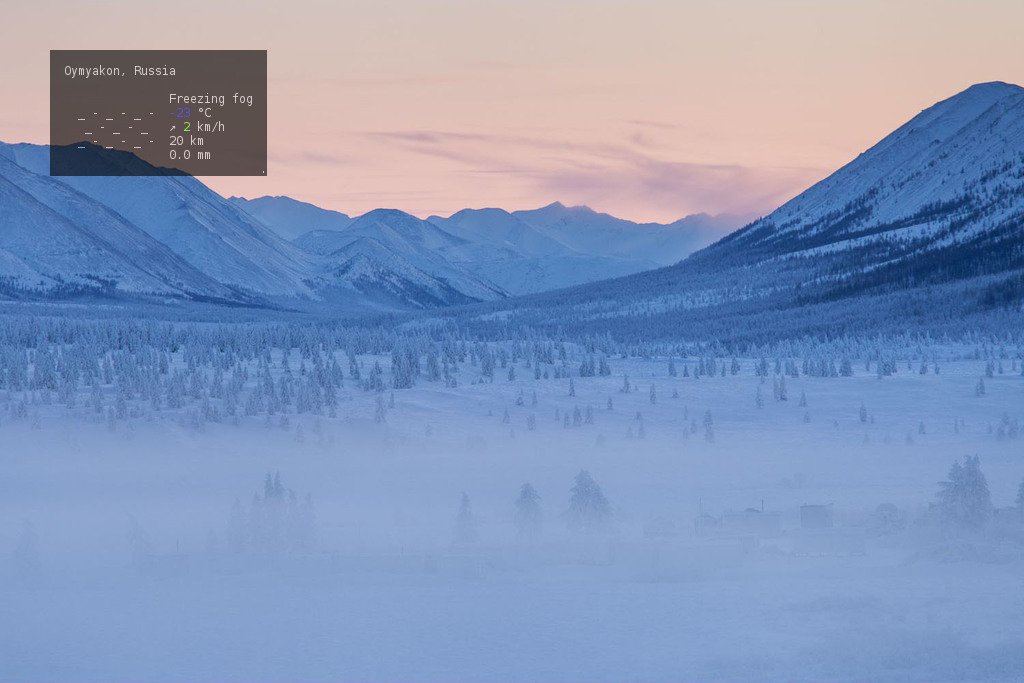
Transparency is a useful feature when weather PNGs are used to add weather data to pictures:
$ convert source.jpg <( curl wttr.in/Oymyakon_tqp0.png ) -geometry +50+50 -composite target.jpg
In this example:
source.jpg- source file;target.jpg- target file;Oymyakon- name of the location;tqp0- options (recommended).
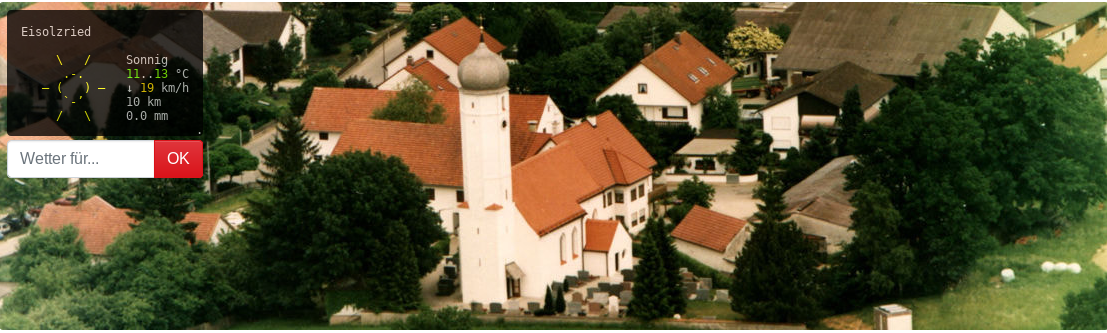
You can embed a special wttr.in widget, that displays the weather condition for the current or a selected location, into a HTML page using the wttr-switcher. That is how it looks like: wttr-switcher-example or on a real world web site: https://feuerwehr-eisolzried.de/.
One-line output format is convenient to be used to show weather info in status bar of different programs, such as tmux, weechat, etc.
For one-line output format, specify additional URL parameter format:
$ curl wttr.in/Nuremberg?format=3
Nuremberg: 🌦 +11⁰C
Available preconfigured formats: 1, 2, 3, 4 and the custom format using the percent notation (see below).
- 1: Current weather at location:
🌦 +11⁰C - 2: Current weather at location with more details:
🌦 🌡️+11°C 🌬️↓4km/h - 3: Name of location and current weather at location:
Nuremberg: 🌦 +11⁰C - 4: Name of location and current weather at location with more details:
Nuremberg: 🌦 🌡️+11°C 🌬️↓4km/h
You can specify multiple locations separated with : (for repeating queries):
$ curl wttr.in/Nuremberg:Hamburg:Berlin?format=3
Nuremberg: 🌦 +11⁰C
Or to process all this queries at once:
$ curl -s 'wttr.in/{Nuremberg,Hamburg,Berlin}?format=3'
Nuremberg: 🌦 +11⁰C
Hamburg: 🌦 +8⁰C
Berlin: 🌦 +8⁰C
To specify your own custom output format, use the special %-notation:
    c    Weather condition,
    C    Weather condition textual name,
    x    Weather condition, plain-text symbol,
    h    Humidity,
    t    Temperature (Actual),
    f    Temperature (Feels Like),
    H    Temperature (High),
    L    Temperature (Low),
    w    Wind,
    l    Location,
    m    Moon phase 🌑🌒🌓🌔🌕🌖🌗🌘,
    M    Moon day,
    p    Precipitation (mm/3 hours),
    P    Pressure (hPa),
    e    Dew point,
    u    UV index (1-12),

    D    Dawn*,
    S    Sunrise*,
    z    Zenith*,
    s    Sunset*,
    d    Dusk*,
    T    Current time*,
    Z    Local timezone.

(*times are shown in the local timezone)
So, these two calls are the same:
    $ curl wttr.in/London?format=3
    London: ⛅️ +7⁰C
    $ curl wttr.in/London?format="%l:+%c+%t\n"
    London: ⛅️ +7⁰C
Thanks to the ease of integrating wttr.in into any program, there are a plethora of popular integrations across various libraries, programming languages, and systems.
wttr.in is compatible with:
- terminal managers,
- window managers,
- editors,
- chat clients,
and more, these integrations enhance workflow efficiency by embedding weather information directly into user interfaces.
See the full list of integrations here: wttr.in integrations and some of them below.
When using in tmux.conf, you have to escape % with %, i.e. write there %% instead of %.
The output does not contain new line by default, when the %-notation is used, but it does contain it when preconfigured format (1,2,3 etc.)
are used. To have the new line in the output when the %-notation is used, use '\n' and single quotes when doing a query from the shell.
In programs, that are querying the service automatically (such as tmux), it is better to use some reasonable update interval. In tmux, you can configure it with status-interval.
If several, : separated locations, are specified in the query, specify update period
as an additional query parameter period=:
set -g status-interval 60
WEATHER='#(curl -s wttr.in/London:Stockholm:Moscow\?format\="%%l:+%%c%%20%%t%%60%%w&period=60")'
set -g status-right "$WEATHER ..."

To embed in to an IRC (WeeChat) client's existing status bar:
/alias add wttr /exec -pipe "/mute /set plugins.var.wttr" url:wttr.in/Montreal?format=%l:+%c+%f+%h+%p+%P+%m+%w+%S+%s;/wait 3 /item refresh wttr
/trigger add wttr timer 60000;0;0 "" "" "/wttr"
/item add wttr "" "${plugins.var.wttr}"
/eval /set weechat.bar.status.items ${weechat.bar.status.items},spacer,wttr
/eval /set weechat.startup.command_after_plugins ${weechat.startup.command_after_plugins};/wttr
/wttr

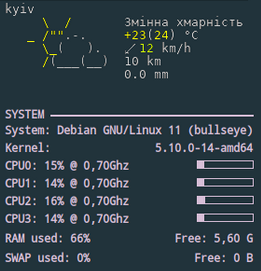
Conky usage example:
${texeci 1800 curl wttr.in/kyiv_0pq_lang=uk.png
  | convert - -transparent black $HOME/.config/conky/out.png}
${image $HOME/.config/conky/out.png -p 0,0}
IRC integration example:
To see emojis in terminal, you need:
- Terminal support for emojis (was added to Cairo 1.15.8);
- Font with emojis support.
For the emoji font, we recommend Noto Color Emoji, and a good alternative option would be the Emoji One font; both of them support all necessary emoji glyphs.
Font configuration:
$ cat ~/.config/fontconfig/fonts.conf
<?xml version="1.0" encoding="UTF-8"?>
<!DOCTYPE fontconfig SYSTEM "fonts.dtd">
<fontconfig>
  <alias>
    <family>serif</family>
    <prefer>
      <family>Noto Color Emoji</family>
    </prefer>
  </alias>
  <alias>
    <family>sans-serif</family>
    <prefer>
      <family>Noto Color Emoji</family>
    </prefer>
  </alias>
  <alias>
    <family>monospace</family>
    <prefer>
      <family>Noto Color Emoji</family>
    </prefer>
  </alias>
</fontconfig>
(to apply the configuration, run fc-cache -f -v).
In some cases, tmux and the terminal understanding of some emoji characters may differ, which may
cause strange effects similar to that described in #579.
To embed into the world main docking bar:
wttr := (UpdatingStringMorph on: [(WebClient httpGet: 'https://wttr.in/?format=%20%20%l:%20%C+%t') content] selector: #value)
	stepTime: 60000;
	useStringFormat;
	yourself.
dockingBar := World mainDockingBars first.
dockingBar addMorph: wttr after: (dockingBar findA: ClockMorph).
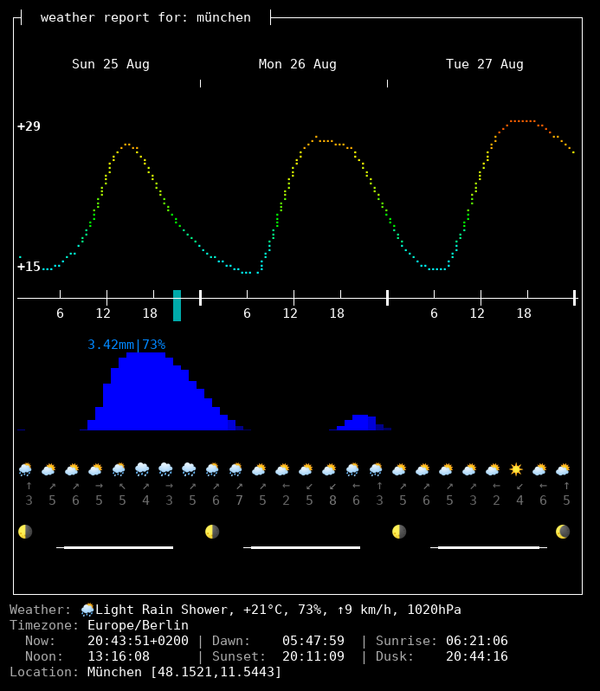
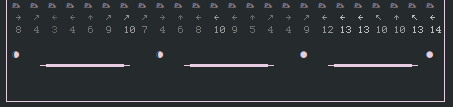
In the experimental data-rich output format, that is available under the view code v2,
a lot of additional weather and astronomical information is available:
- Temperature, and precipitation changes forecast throughout the days;
- Moonphase for today and the next three days;
- The current weather condition, temperature, humidity, wind speed and direction, pressure;
- Timezone;
- Dawn, sunrise, noon, sunset, dusk time for he selected location;
- Precise geographical coordinates for the selected location.
$ curl v2.wttr.in/München
or
$ curl wttr.in/München?format=v2
or, if you prefer Nerd Fonts instead of Emoji, v2d (day) or v2n (night):
$ curl v2d.wttr.in/München
(The mode is experimental, and it has several limitations currently:
- It works only in terminal;
- Only English is supported).
Currently, you need some tweaks for some terminals, to get the best possible visualization.
Depending on your configuration you might be taking all steps, or only a few. URXVT currently doesn't support emoji related fonts, but we can get almost the same effect using Font-Symbola. So add to your .Xresources file the following line:
xft:symbola:size=10:minspace=False
You can add it after your preferred font and it will only show up when required.
Then, if you see or feel like you're having spacing issues, add this: URxvt.letterSpace: 0
For some reason URXVT sometimes stops deciding right the word spacing and we need to force it this way.
The result, should look like:
In the experimental map view, that is available under the view code v3,
weather information about a geographical region is available:
$ curl v3.wttr.in/Bayern.sxl

or directly in browser:
The map view currently supports three formats:
- PNG (for browser and messengers);
- Sixel (terminal inline images support);
- IIP (terminal with iterm2 inline images protocol support).
Terminal with inline images protocols support:
⟶ Detailed article: Images in terminal
| Terminal | Environment | Images support | Protocol |
|---|---|---|---|
| uxterm | X11 | yes | Sixel |
| mlterm | X11 | yes | Sixel |
| kitty | X11 | yes | Kitty |
| wezterm | X11 | yes | IIP |
| Darktile | X11 | yes | Sixel |
| Jexer | X11 | yes | Sixel |
| GNOME Terminal | X11 | in-progress | Sixel |
| alacritty | X11 | in-progress | Sixel |
| foot | Wayland | yes | Sixel |
| DomTerm | Web | yes | Sixel |
| Yaft | FB | yes | Sixel |
| iTerm2 | Mac OS X | yes | IIP |
| mintty | Windows | yes | Sixel |
| Windows Terminal | Windows | in-progress | Sixel |
| RLogin | Windows | yes | Sixel |
The JSON format is a feature providing access to wttr.in data through an easy-to-parse format, without requiring the user to create a complex script to reinterpret wttr.in's graphical output.
To fetch information in JSON format, use the following syntax:
$ curl wttr.in/Detroit?format=j1
This will fetch information on the Detroit region in JSON format. The j1 format code is used to allow for the use of other layouts for the JSON output.
The result will look something like the following:
{
	"current_condition": [
		{
		    "FeelsLikeC": "25",
		    "FeelsLikeF": "76",
		    "cloudcover": "100",
		    "humidity": "76",
		    "observation_time": "04:08 PM",
		    "precipMM": "0.2",
		    "pressure": "1019",
		    "temp_C": "22",
		    "temp_F": "72",
		    "uvIndex": 5,
		    "visibility": "16",
		    "weatherCode": "122",
		    "weatherDesc": [
			{
			    "value": "Overcast"
			}
		    ],
		    "weatherIconUrl": [
			{
			    "value": ""
			}
		    ],
		    "winddir16Point": "NNE",
		    "winddirDegree": "20",
		    "windspeedKmph": "7",
		    "windspeedMiles": "4"
		}
	],
...
Most of these values are self-explanatory, aside from weatherCode. The weatherCode is an enumeration which you can find at either the WorldWeatherOnline website or in the wttr.in source code.
A smaller version format=j2 without hourly data is also availble. Can work well for microcontrollers with limited memory.
The Prometheus Metrics format is a feature providing access to wttr.in data through an easy-to-parse format for monitoring systems, without requiring the user to create a complex script to reinterpret wttr.in's graphical output.
To fetch information in Prometheus format, use the following syntax:
$ curl wttr.in/Detroit?format=p1
This will fetch information on the Detroit region in Prometheus Metrics format. The p1 format code is used to allow for the use of other layouts for the Prometheus Metrics output.
A possible configuration for Prometheus could look like this:
    - job_name: 'wttr_in_detroit'
        static_configs:
            - targets: ['wttr.in']
        metrics_path: '/Detroit'
        params:
            format: ['p1']
The result will look something like the following:
# HELP temperature_feels_like_celsius Feels Like Temperature in Celsius
temperature_feels_like_celsius{forecast="current"} 7
# HELP temperature_feels_like_fahrenheit Feels Like Temperature in Fahrenheit
temperature_feels_like_fahrenheit{forecast="current"} 45
[truncated]
...
wttr.in can also be used to check the phase of the Moon. This example shows how to see the current Moon phase in the full-output mode:
$ curl wttr.in/Moon
Get the moon phase for a particular date by adding @YYYY-MM-DD:
$ curl wttr.in/Moon@2016-12-25
The moon phase information uses pyphoon as its backend.
To get the moon phase information in the online mode, use %m:
$ curl wttr.in/London?format=%m
🌖
Keep in mind that the Unicode representation of moon phases suffers 2 caveats:
-
With some fonts, the representation
🌘is ambiguous, for it either seem almost-shadowed or almost-lit, depending on whether your terminal is in light mode or dark mode. Relying on colored fonts likenoto-fontsworks around this problem. -
The representation
🌘is also ambiguous, for it means "last quarter" in northern hemisphere, but "first quarter" in souther hemisphere. It also means nothing in tropical zones. This is a limitation that Unicode is aware about. But it has not been worked around atwttr.inyet.
See #247, #364 for the corresponding tracking issues, and pyphoon#1 for pyphoon. Any help is welcome.
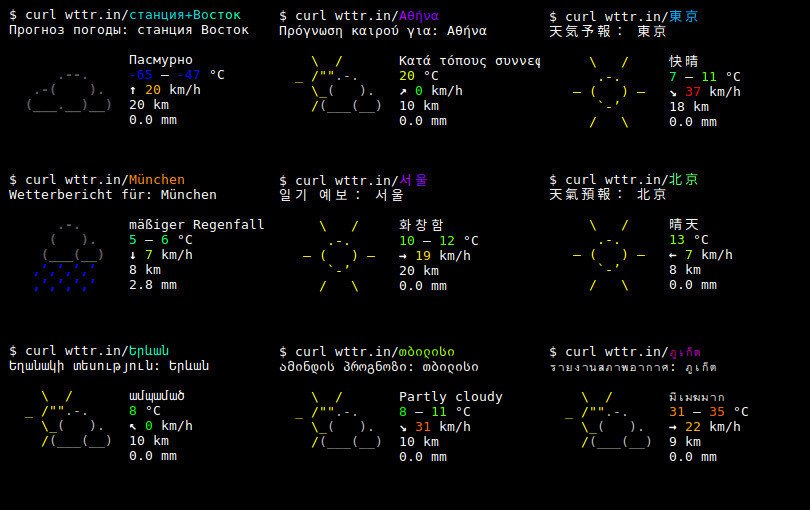
wttr.in supports multilingual locations names that can be specified in any language in the world (it may be surprising, but many locations in the world don't have an English name).
The query string should be specified in Unicode (hex-encoded or not). Spaces in the query string
must be replaced with +:
$ curl wttr.in/станция+Восток
Weather report: станция Восток

               Overcast
      .--.     -65 – -47 °C
   .-(    ).   ↑ 23 km/h
  (___.__)__)  15 km
               0.0 mm
The language used for the output (except the location name) does not depend on the input language
and it is either English (by default) or the preferred language of the browser (if the query
was issued from a browser) that is specified in the query headers (Accept-Language).
The language can be set explicitly when using console clients by using command-line options like this:
curl -H "Accept-Language: fr" wttr.in
http GET wttr.in Accept-Language:ru
The preferred language can be forced using the lang option:
$ curl wttr.in/Berlin?lang=de
The third option is to choose the language using the DNS name used in the query:
$ curl de.wttr.in/Berlin
wttr.in is currently translated into 54 languages, and the number of supported languages is constantly growing.
See /:translation to learn more about the translation process, to see the list of supported languages and contributors, or to know how you can help to translate wttr.in in your language.
This guide explains how to install wttr.in from the source code.
It is implemented as a single static binary with all assets (including fonts for PNG rendering) embedded inside. It has zero runtime dependencies, supports both HTTP and HTTPS natively, and does not need nginx, Apache, or any other web server in front.
At the end of this installation you will have:
- A clean, self-contained wttr.in service installed in
/wttr.in/ - A single executable binary (
/wttr.in/bin/srv) - Configured caching, IP geolocation (GeoIP2), and location resolution (OpenCage)
- The service, fully equivalent to the public wttr.in, is running on port 8080 (HTTP) and is ready to serve weather reports.
sudo mkdir -p /wttr.in/{bin,cache,log,data,etc}If you want to run the server as a dedicated user (recommended):
sudo useradd -r -s /bin/false -u 1000 wttr
sudo chown -R wttr:wttr /wttr.inFor automated IPs resolution:
- Register at MaxMind and download GeoLite2-City.mmdb.
- Place it at:
/wttr.in/data/GeoLite2-City.mmdb
git clone https://github.com/chubin/wttr.in.git
cd wttr.in

# Build-time fonts (embedded in final binary)
sudo apt-get install -y --no-install-recommends \
  fontconfig fonts-dejavu-core fonts-noto-core fonts-noto-cjk \
  fonts-wqy-zenhei fonts-symbola fonts-motoya-l-cedar fonts-lexi-gulim

bash build.sh buildsudo cp srv /wttr.in/bin/srv
sudo chown wttr:wttr /wttr.in/bin/srvCreate /wttr.in/config.yaml:
cache:
  size: 50000

ip:
  ipCacheDb: /wttr.in/cache/geoip.db
  ipCacheType: db
  geoip2: /wttr.in/data/GeoLite2-City.mmdb

geo:
  locationCacheDb: /wttr.in/cache/geoloc.db
  locationCacheType: db
  nominatim:
    - name: opencage
      type: opencage
      url: https://api.opencagedata.com/geocode/v1/json
      token: "YOUR_OPENCAGE_TOKEN_HERE"

weather:
  wwo:
    baseUrl: "http://wttr.in/{lat},{lon}?format=j1&lang={lang}"
    # key: "YOUR_WWO_TOKEN"   # optional

server:
  portHttp: 8080
  # portHttps: 8443
  # tlsCertFile: /wttr.in/etc/fullchain.pem
  # tlsKeyFile: /wttr.in/etc/privkey.pem
The configuration implies the use of OpenCage for geolocation (a token is required) and wttr.in as the source of weather data.
If you want to use WorldWeatherOnline, you must register there to obtain a token and set the baseUrl accordingly.
cd /wttr.in
sudo -u wttr ./bin/srv --config config.yaml
You can now access your instance at http://your-server:8080 (e.g. http://your-server:8080/London).
For production, create a systemd service. Cache and logs are stored under /wttr.in/cache and /wttr.in/log.
As of April 2026, wttr.in handles around 100 million queries per day from 400,000 to 450,000 users, according to the access logs.
