

Smooth 2x for hand-drawn animation, inside DaVinci Resolve Studio.
Anime is drawn on 2s or 3s: the artist draws twelve pictures a second, or eight, and each one is held for two or three frames to fill 24fps. That is why anime looks stepped when you slow it down, and why running it straight through a frame interpolator does nothing useful. Most neighbouring frames are identical, so there is no motion to interpolate between them.
Upflow2x recovers the real drawings first, then rebuilds the shot.
source     A A B B C C C D D        9 frames, held on 2s
drawings   A   B   C     D          4 unique drawings
rebuilt    A a B b C C c D D        in-betweens generated, C keeps its longer hold
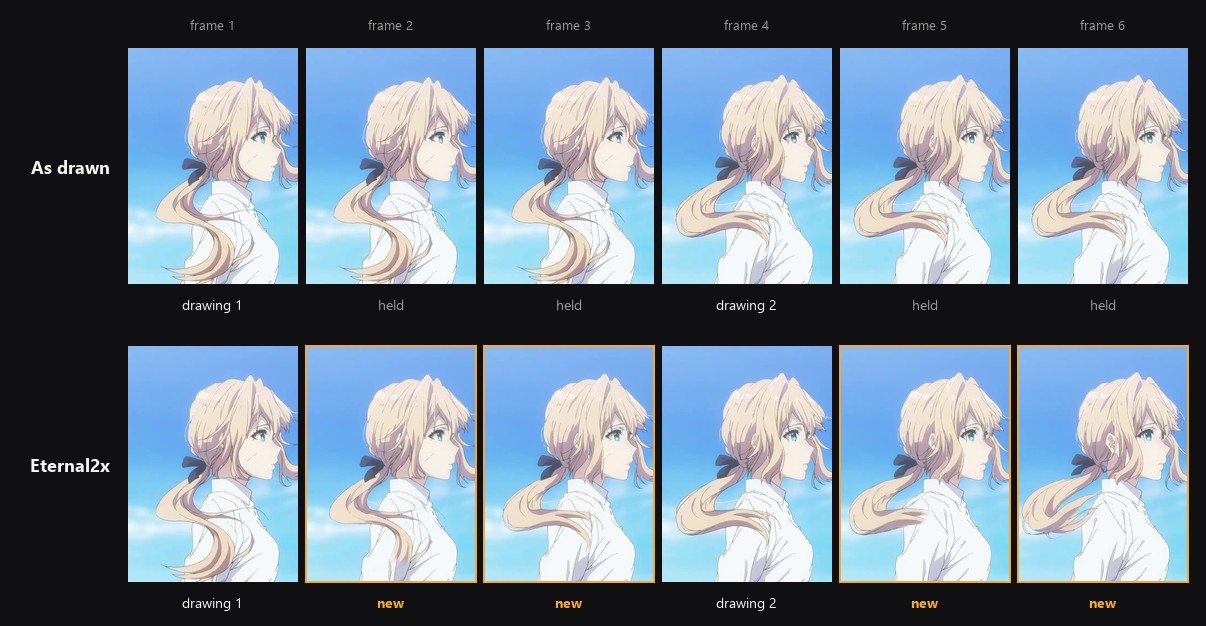
Six frames of hair in the wind, drawn on 3s. The site has the moving version, with a divider to drag between the two.
Every drawing starts on the same frame it did in the source, so cuts and lip sync stay where the edit put them.
The result has the same length and frame rate as the clip you started with, so it drops straight back into your edit.
- Finds duplicated frames and works out whether the clip is on 1s, 2s or 3s. It counts a change of colour, a slow fade or a slow pan as motion rather than a hold. With Grainy source ticked, it sees through film grain.
- Draws the in-between frames that were never drawn with the RIFE network, run on your own machine, on the GPU on Windows wherever DirectML loads. Moving characters stay in one piece.
- Makes no in-between by warping pixels, which doubles lines and smears fast characters on drawn animation. Where the network cannot run, the drawings are kept as drawn.
- Keeps deliberate held poses still, instead of smearing them into drift.
- Cuts stay hard. Blending across a scene change would show both shots at once, so it snaps instead.
- Upscales 2x with Real-ESRGAN's anime model, on the GPU on Windows. It clears compression blocks and keeps thin lines crisp, where Super Scale enlarges the blocks. Without a GPU, Resolve's Super Scale does the upscale.
It does a job like Twixtor's, but finds the held drawings first, so it only generates the frames that were never drawn. It draws them with a network trained for in-betweens rather than by warping pixels along optical flow, which is where retimers tear, melt and double lines.
- DaVinci Resolve Studio 18 or newer. Since 19.1 the free edition blocks script panels like this one, so it cannot open Upflow2x. Without a GPU, the 2x upscale falls back to Super Scale, which is Studio only too.
- Python 3.10 to 3.14 on your PATH, from python.org. 3.15 is too new for the AI runtime, and on an Intel Mac it stops at 3.13.
- Extract the download somewhere permanent.
- From the folder that contains
Installer, runpython Installer/gui_installer.py(python3on macOS) and click Install. - It installs
numpyandopencv-python, copies the plugin into Resolve's scripts folder and writes the config. - Restart Resolve and open Workspace → Scripts → Upflow2x.
Up to v0.4.0 the plugin was called Eternal2x, and those releases list it as Workspace → Scripts → Eternal2x.
If the window does not open, your Python was built without Tk. Use the manual install below, which does the same job.
python -m pip install numpy opencv-python
python Installer/install_eternal2x.py
Use python3 on macOS. The installer records the Python that runs it, so
install the packages into that same one. Then restart Resolve.
The installer writes to Resolve's Utility scripts folder, which Resolve lists under Workspace → Scripts on every page:
- Windows:
%APPDATA%\Blackmagic Design\DaVinci Resolve\Support\Fusion\Scripts\Utility\ - macOS:
~/Library/Application Support/Blackmagic Design/DaVinci Resolve/Fusion/Scripts/Utility/
Earlier versions used the Comp folder, which Resolve only lists on the Fusion page. Re-running the installer moves it.
The config records where the plugin folder is, so re-run the installer if you move it.
- Move the playhead over a clip on your timeline. Resolve does not tell scripts which clip is selected, so Upflow2x works on the clip under the playhead, read again each time you press a button.
- Open Workspace → Scripts → Upflow2x.
- Click Analyse. It reads the clip, tells you what it found, for
example
1438 frames, 719 unique drawings (719 held, 50%). Animated on 2s., and puts a marker on the clip at every drawing. A pose held for more than twice the clip's pattern is a pause. It gets a second marker just before the next drawing, so it stays still and then moves on at the clip's pace. - Check the markers. If Analyse marked too many or too few, move Threshold and analyse again. That replaces only its own markers, never yours, and puts back any of its markers you deleted. Then delete a marker to leave its frame out, even if it moved, or select the clip and press M to mark a frame Analyse missed.
- Click Render.
Render keeps every marked frame as drawn and draws every frame between two markers fresh, so a part you leave unmarked never counts. Every marker on the clip counts, whatever its colour, and the clip's first frame always does. Markers on the timeline's ruler do not, so beat markers are safe there. You can skip Analyse and mark the frames yourself. A clip with no markers at all is rendered from the drawings Upflow2x finds on its own.
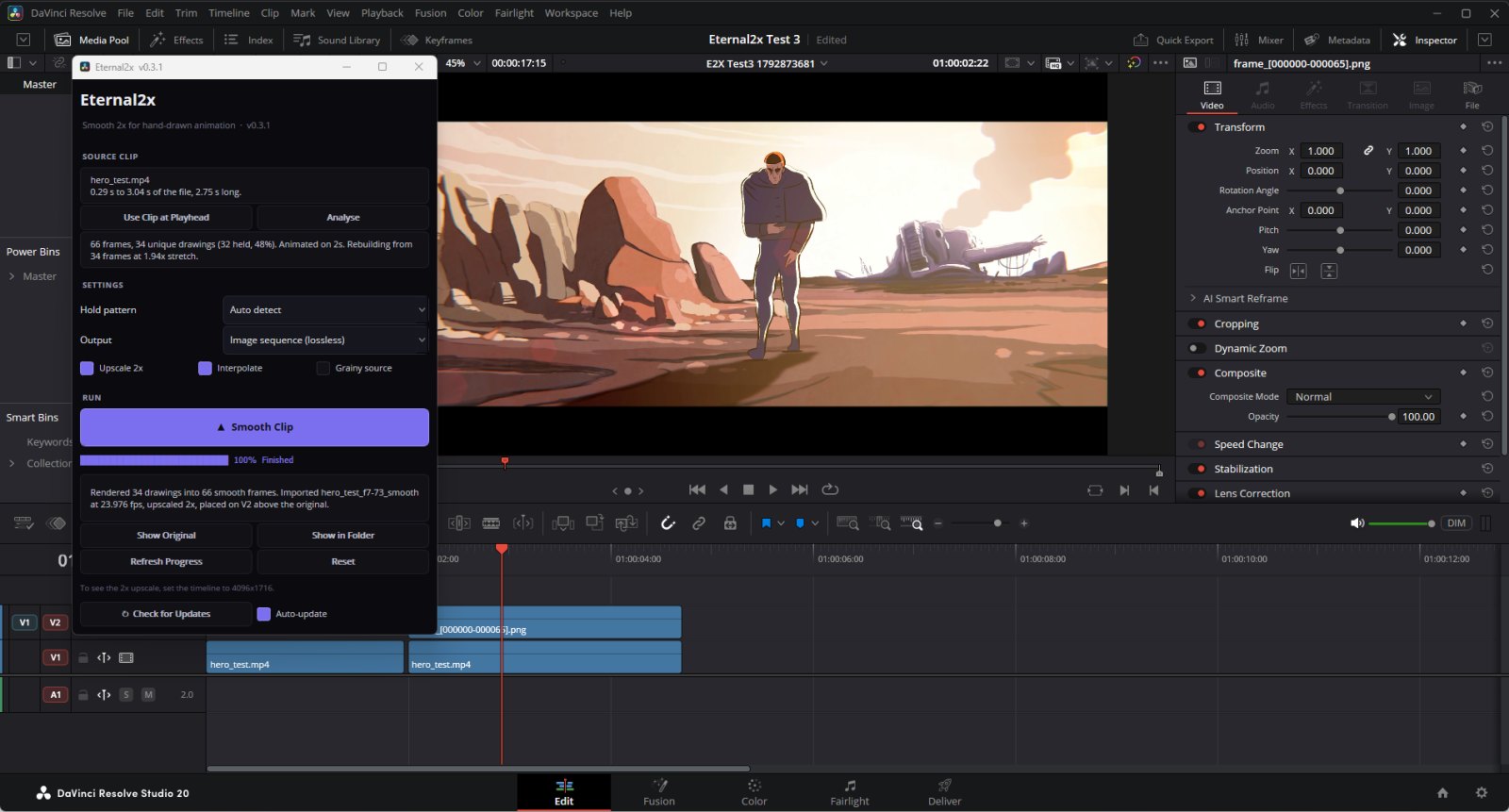
The render runs in the background and the panel shows progress and the time left, so Resolve stays usable while it works. When it finishes, the rebuilt clip is imported and placed on the track above the original, starting on the same frame, so it lines up with your edit and audio. It goes on the lowest track that is empty there, or a new track named Upflow2x. Your other clips are never covered or moved. If you move the original while it renders, the result follows it. If another timeline is open when it finishes, or the original was deleted or re-trimmed, it goes at the end instead. An image sequence whose frame rate Resolve would not set stays in the media pool, since it would play at the wrong speed.
Then:
- Show Original switches the smoothed clip off so the original shows through, and Show Upflow2x switches it back. Scrub or play to compare.
- Show in Folder opens the render's location.
Only the part of the file the timeline clip uses is analysed and rebuilt. To reach it, the file is still decoded from its start, once for Analyse and again for the render, so a short cut late in a long episode shows Seeking for a while first. The panel shows the range it will use under the clip's name, or Whole file when Resolve does not report one.
| Setting | What it does |
|---|---|
| Threshold | How big a change Analyse counts as a new drawing, 1 to 9. Lower catches small moves, like only a mouth or a slow drift. Higher counts only big ones, like the whole shot moving. It does nothing to frames you have marked. |
| Hold pattern | Leave on Auto detect. Force On 2s or On 3s if a clip has unusual timing that trips the detector. |
| Output | Image sequence is lossless and the most reliable to import. MP4 is a single compact file but lossy. MKV is a lossless single file. All three are 8-bit RGB: transparency and 10-bit colour in the source are not kept. MP4 and MKV need an even width and height. |
| Upscale 2x | Draws every frame at 2x with Real-ESRGAN's anime video model, on the GPU through DirectML, about 0.14 s a 1080p frame on a Radeon. The model ships with Upflow2x. Without a GPU, on a Mac for one, Resolve's Super Scale is applied to the imported clip instead. Either way it only shows on a timeline bigger than the clip, such as 3840x2160 for 1080p footage. A 2x render has four times the pixels. As an image sequence, a 4K frame of anime is about 6 to 7 MB, four to five times its 1080p size. |
| Interpolate | On, the RIFE network draws every missing in-between. On Windows it runs on the GPU through DirectML, about 0.13 s an in-between at 2K on a Radeon, and falls back to the CPU, about ten times slower. If its Python already has ONNX Runtime without DirectML, that one is used, on the CPU. Its first run installs ONNX Runtime and downloads the model, about 50 MB, so it needs a connection once; without one, every drawing is kept as drawn and the panel says why. Off skips the in-betweens, so every drawing comes back on its original frame. Use it with Upscale 2x to upscale only. |
| Grainy source | For film grain, which makes every held frame differ a little, so they all look new. It raises the threshold above the clip's own grain. Leave it off for clean animation, where it can merge fine real changes. Analyse suggests it when every frame differs in a way that looks like grain. |
Settings are remembered between sessions.
If a clip has no duplicated frames, Upflow2x says so and stops. Live action and animation already on 1s have nothing to recover, and smoothing them would only invent motion that was never there.
It also refuses a clip with a variable frame rate, as phone and screen
recordings often have. Every rebuilt frame lasts the same time, so such a clip
would come out a different length and drift against its audio. Render it to a
constant frame rate first, from Resolve or with
ffmpeg -i clip.mp4 -r 24 clip_cfr.mp4 at your timeline's rate.
Every button is a thin wrapper around one module, so you can script it:
python -m Stages.resolve_smooth --video shot.mov --analyse
python -m Stages.resolve_smooth --video shot.mov --format mp4
python -m Stages.resolve_smooth --video shot.mov --base-hold 3 --no-interpolate
python -m Stages.resolve_smooth --video grainy.mov --grain
--video skips Resolve entirely and writes the result to an Upflow2x folder
beside the source, or to --output-dir. Add --network-upscale and, where
Real-ESRGAN runs on a GPU, the render is 2x. Without it, or without a GPU, the
2x upscale is Resolve's Super Scale, applied when the panel imports the result,
so a --video run stays at source resolution.
Add --json and stdout carries a single JSON summary, errors included, while
progress goes to stderr.
Upflow2x checks for updates at startup, or on demand with the Check for Updates button. Updates are verified against a SHA-256 checksum and checked for every file the plugin needs before being applied. If an update fails partway, the files it replaced are put back. Restart Resolve afterwards.
| Problem | Fix |
|---|---|
| Resolve says you need Studio | Since 19.1 the free edition blocks script panels. Upflow2x needs Studio. |
| Clicking Upflow2x does nothing, or "Plugin folder not configured" | The plugin folder moved after installing, and Workspace → Console says UI script not found. Re-run python Installer/install_eternal2x.py from where it is now. |
| "Could not reach Resolve" | Open the panel from Workspace → Scripts, not from a terminal. |
| "No clip under the playhead" | Move the playhead over the clip, then press Use Clip at Playhead. |
| "No duplicate frames. This clip is already on 1s." | The clip has no duplicated frames. It is live action, or already on 1s. |
| "Every frame differs, but the differences look like grain" | Tick Grainy source and analyse again. Heavy grain on a clip with long holds can still hide the duplicates. |
| "...has a variable frame rate" | Render the clip to a constant frame rate first, from Resolve or with ffmpeg, as the message says. |
| Progress seems stuck | Press Refresh Progress. If Python stopped, the panel says so and shows its last error. If a run was interrupted, press Reset. |
| Resolve would not import the render | The render still finished. The panel prints where it is, so drag it into your media pool. Switching Output to Image sequence usually avoids this. |
| Upscale skipped | Without a GPU the upscale is Super Scale, which needs Resolve Studio. |
| Something else | Email the panel's status text and the .eternal2x_last_run.log file from the plugin folder. |
./test.sh
360+ tests, no Resolve required. The suite fakes the Resolve scripting API and
runs the Lua panel under an embedded Lua runtime, so buttons, commands and the
full render pipeline are all covered headlessly. See tests/README.md.
Tests run on Linux, macOS and Windows against Python 3.9 and 3.12.
To see which scripting API methods a Resolve build offers, turn on
Preferences → System → General → External scripting using → Local, set up
the environment variables from Blackmagic's scripting README, then run
python -m Stages.resolve_probe from the plugin folder.
To cut a release, bump VERSION and push a matching tag:
git tag v0.3.1 && git push origin v0.3.1
The release workflow builds the archives, publishes them, checks the published
downloads really resolve, and refreshes update/latest.json. The tag is derived
from VERSION in one place, so the archives, the tag and the update feed cannot
drift apart.
To build locally without publishing:
python Installer/build_release.py            # build the folders and zips
python Installer/build_release.py --publish  # build, tag, upload, verify
python Installer/build_release.py --verify   # check the live feed is sound
update/latest.json always describes the release that is live, so only
--publish writes it, and only once the uploaded files match the build. A
plain build never touches it. Files already on a release are never replaced.
If you change anything that ships after a release goes out, bump VERSION and
cut a new one rather than re-uploading.
Archives are byte reproducible, so rebuilding a tag on any machine gives the same checksums as the published ones.
The in-betweens are drawn by Practical-RIFE 4.25 by Zhewei Huang, under the MIT licence, in the ONNX export made by vs-mlrt. The model is downloaded the first time in-betweens are drawn and checked against its SHA-256. It is not part of the Upflow2x download.
The 2x upscale is drawn by Real-ESRGAN's anime video model, realesr-animevideov3,
by Xintao Wang, under the BSD 3-Clause licence
(Real-ESRGAN). Its network file in
Pipeline/networks is built from the published weights by
tools/make_upscaler_model.py, and ships with its licence beside it.
The film on the site, promo.mp4, uses footage from Hero by the Blender Foundation, CC BY 4.0, edited, and footsteps, clicks and paper sounds by Kenney, CC0. Its wind is made from noise.
Email hello@sideband.studio